
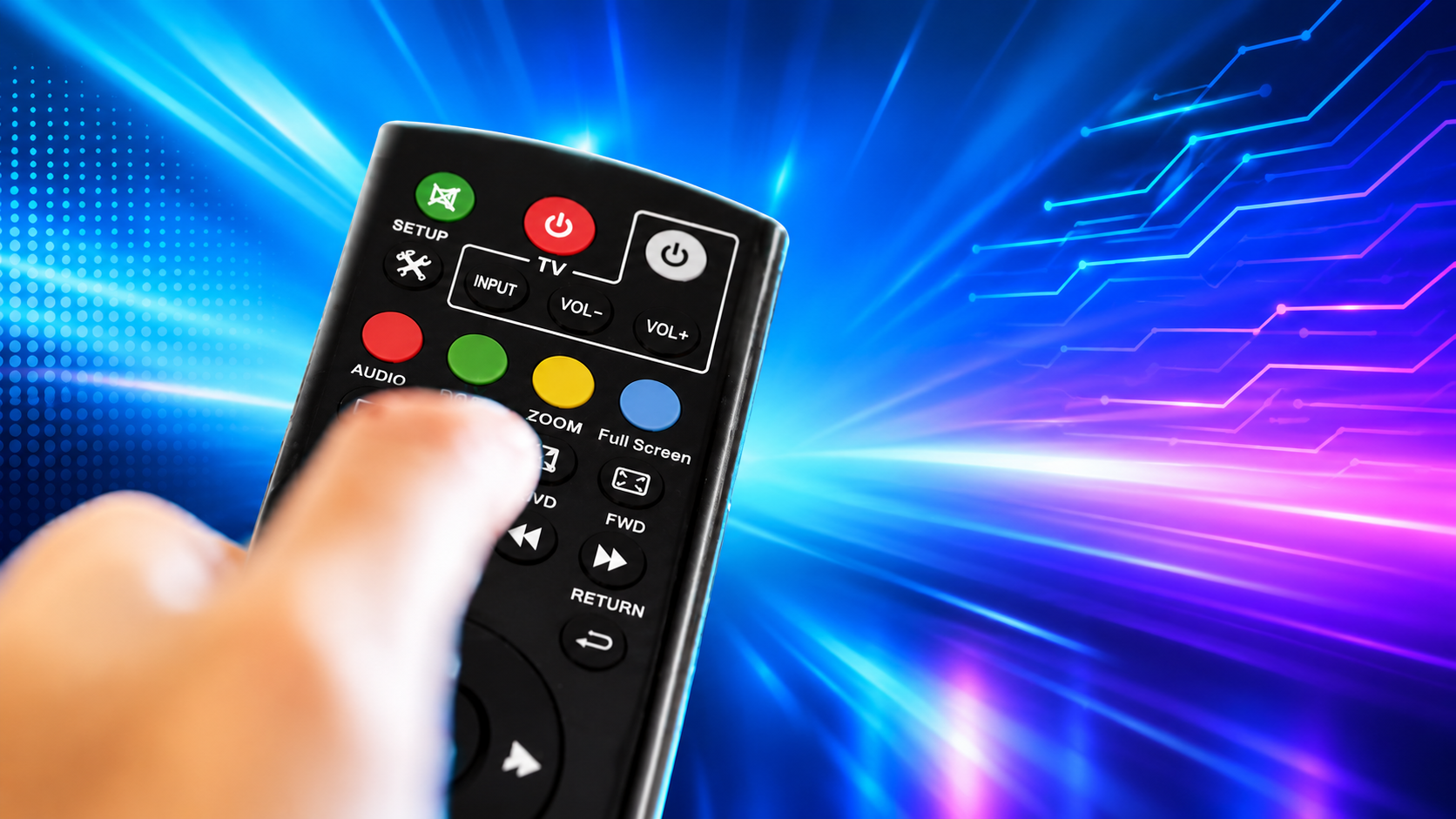
If you want to control both your TV and vSeeBox with one remote, this step-by-step guide will show you how to pair your TV remote with your vSeeBox remote in just a few minutes.
A detailed instructional video above that visually demonstrates the full pairing process, making it easier to follow for first-time users and seniors.
This remote learning method is officially supported by the latest vSeeBox models, including vSeeBox V6 Plus, vSeeBox V6 Max, vSeeBox Elite Ultra, and vSeeBox V5 Pro, and works with most infrared (IR) TV remotes.
Why Pair Your TV Remote with vSeeBox?
Pairing your TV remote to your vSeeBox remote allows you to:
-
Power your TV on and off using the vSeeBox remote
-
Control TV volume and mute
-
Reduce the number of remotes you need
-
Make daily operation easier for seniors and families
For newer models like vSeeBox V6 Plus and V6 Max, this feature improves the one-remote experience and provides faster response compared with older generations.
Supported Models
This setup guide works with the following vSeeBox models:
| Model | Key Features |
|---|---|
| V6 Plus | Android 14, split-screen multitasking, faster performance |
| V6 Max | Flagship model with enhanced system stability |
| Elite Ultra | Balanced performance and value |
| V5 Pro | Classic and widely used model |
What You Need Before Setup
Before starting, make sure:
-
Your TV and vSeeBox are powered on
-
You are using the original vSeeBox remote
-
Your TV remote works normally
-
The two remotes are within 1 meter (3 feet) of each other
-
Your TV remote uses infrared (IR) (not Bluetooth-only)
Step-by-Step: How to Connect Your TV Remote to vSeeBox
Step 1: Enter Learning Mode on the vSeeBox Remote
-
Hold the TV Power button on the vSeeBox remote for 3–5 seconds.
-
The indicator light will start flashing, which means the remote is now in learning mode.
Step 2: Send the Power Command from Your TV Remote
-
Point the TV remote at the front of the vSeeBox remote.
-
Press the Power button on your TV remote.
-
When the vSeeBox remote light becomes solid or stops flashing, the command has been saved.
Step 3: Pair Volume and Mute Buttons (Recommended)
Repeat the same steps to pair:
-
Volume +
-
Volume −
-
Mute (optional)
This allows your vSeeBox remote to fully control your TV sound.
Step 4: Test the Remote
Use the vSeeBox remote to:
-
Turn the TV on and off
-
Adjust the volume
If the TV responds correctly, the setup is complete.
Troubleshooting Tips
If pairing does not work:
-
Make sure your TV remote uses infrared (IR)
-
Keep the two remotes very close during pairing
-
Try pairing again slowly
-
Replace the batteries in both remotes
-
Repeat the learning process for each button
How to Reset Remote Pairing
If you want to clear previous settings:
-
Hold the TV Power button for 8–10 seconds.
-
Wait for the indicator light to blink rapidly.
-
Start the pairing process again from Step 1.
Why This Feature Is Useful on Newer Models
New models like vSeeBox V6 Plus and vSeeBox V6 Max are designed for modern home entertainment setups. With features such as split-screen multitasking, faster system response, and Android 14 support, using one remote makes the experience smoother and more user-friendly.
Even older models like vSeeBox Elite and V5 Pro support this remote learning function, making them easier to use without upgrading your TV remote.
Final Thoughts
Connecting your TV remote to your vSeeBox remote is a simple but powerful feature. In just a few minutes, you can:
-
Use one remote instead of two
-
Power your TV and control volume easily
-
Enjoy a cleaner and simpler setup
This guide works for vSeeBox V6 Plus, V6 Max, Elite, and V5 Pro, making it a practical solution for both new and existing users.
👉Get your vSeeBox now.